Advanced Programming
RST (Restart) commands
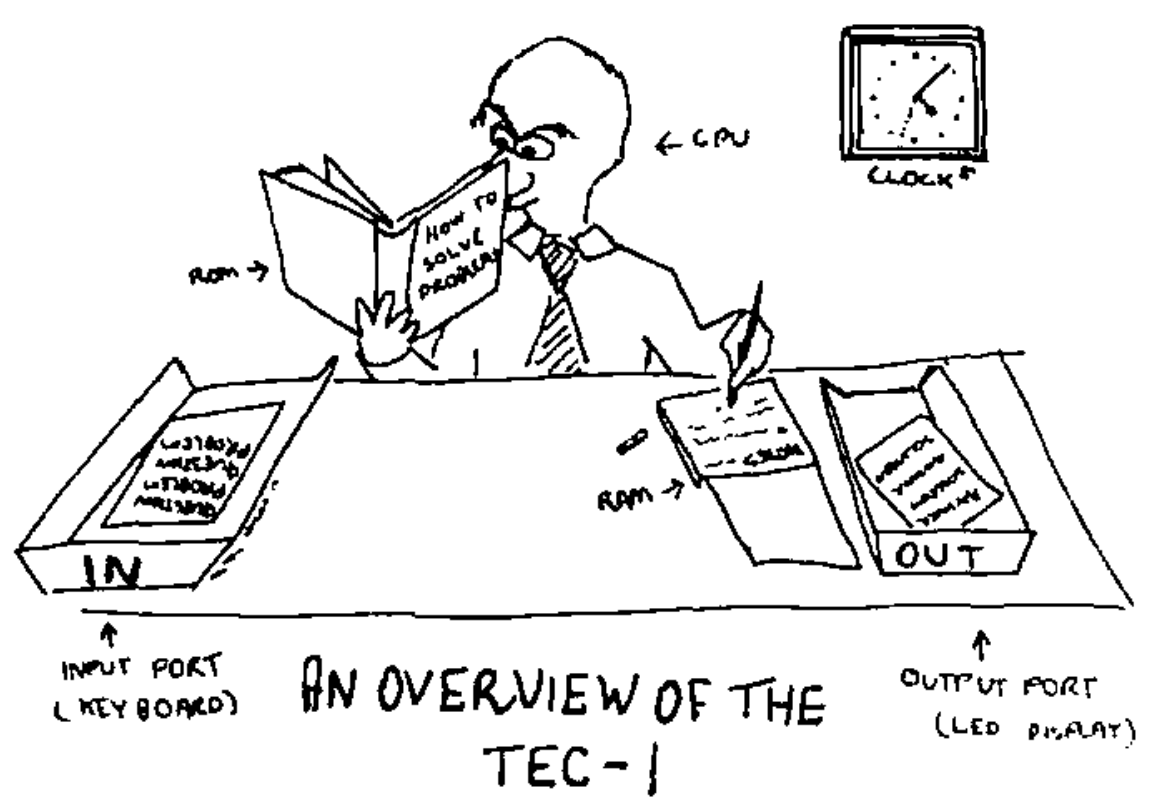
To assist when developing Z80 programs, Mon3 contains built-in functionality that makes it easy to interface with the TEC-1G hardware.
RST commands on the Z80 are one-byte call commands that execute code at certain address locations defined by the Z80. The following table outlines the routines.
 Command         Op Code       Description

 RST 00H             C7        Software monitor reset.

 RST 08H             CF        Key wait and press routine.  This simulates a
                               HALT command where the TEC will wait for a
                               key to be pressed and continue execution.  If a
                               key is currently being held down, the routine
                               will wait first until the key is released and then
                               detect the next key.  The key that has been
                               pressed will be stored in register A. EG:

                               RST 08H     ; Wait for keypress
                               LD B,A      ; Load key to register B


 RST 10H             D7        API entry call.  Executes a monitor routine.  See
                               the API calls section below for details.

 RST 18H             DF        API 2 entry call.  Graphical LCD routine entry.
                               See the GLCD section below for details.

 RST 20H             E7        Scan Seven Segments and Keys.  Multiplex the
                               seven-segment displays and check for a key
                               press.  It can be used to display information on
                               the seven segments and check for a key to be
                               pressed.  It must be called in a loop until a key is
                               pressed to maintain 7-segment persistence..
                               Returns Zero flag set when a key is pressed and
                               Register A with the key value.  Register DE
                               points to the seven-segment data.  See the first
                               program in the Quick Start Programs chapter
                               for an example.
                               Registers DE,A and B will be modified with this
                               routine.
Interrupts
 RST 28H             EF       LCD Busy Check.  To be called before sending a
                              command to the LCD if directly communicating
                              with the LCD.  The routine will only exit when
                              the LCD Busy flag is not set. EG:

                              RST 28H     ; Check LCD busy flag
                              LD A,01H    ; Load A with a clear screen
                              OUT (04),A  ; Send instruction to LCD


 RST 30H             F7       Breakpoint entry.  Break code execution at the
                              current address location.  See the Debugging
                              Programs chapter for details.

 RST 38H             FF       Maskable interrupt handler.  Jumps here with
                              Interrupts Enabled (EI), Interrupt Mode 1 (IM 1)
                              and when the INT pin on the CPU goes low.
                              Mon3 will do nothing when this happens.
                              However, a user-defined routine can be used.
                              See the Interrupt section below on how to do
                              this.
Interrupts
The Z80 CPU has the ability to interrupt the execution of code, handle the interrupt and then resume code execution. This is done in software with Interrupts Enabled (EI) and Interrupt Mode 1 (IM 1) and by hardware when the INT line on the CPU goes low. Mon3 ignores interrupts, but a user-defined routine can be provided to handle the interrupt. To do this, the address of the interrupt routine is to be placed at RAM address 0892H.
        ei                 ; Enable interrupts
        im 1               ; Interrupt mode 1
        ld hl,myINT          ; Interrupt routine
      ld (0892H),hl          ; Save address in 0892H
        ... continue

 myINT:
        ld c,03H   ; Bell routine
        rst 10H    ; Call API
        reti       ; Exit Int routine
This code will sound a bell tone in the speaker when an interrupt occurs.
NMI (Non-Maskable Interrupts)
Non-Maskable Interrupts occur when the NMI line on the CPU goes low. These interrupts will always trigger. Mon3 ignores the NMI line, but a user-defined routine can be provided to handle the interrupt. To do this, the address of the interrupt routine is to be placed at RAM address 0894H.
      ld hl,myNMI            ; NMI routine
      ld (0894H),hl          ; Save address in 0894H
        ... continue

 myNMI:
        ld c,03H   ; Bell routine
        rst 10H    ; Call API
        retn       ; Exit NMI routine
This code will sound a bell tone in the speaker when an NMI occurs. The TEC-1G has an NMI jumper that can set NMI to trigger on a Keypad press, a HALT instruction or externally (no jumper).
Credit: Ken Stone
API (Application Programming Interface) commands.
The API on Mon3 exposes routines used by Mon3 which can be used in your own programs. No need to rewrite the world! But more importantly, it makes writing code quicker and easier with most of the complicated stuff removed.
General conventions
The register C holds the API Call number. All other registers except the IX register can be used as parameters if needed. Executing a RST 10H or D7 calls the API.
General Interface
        ld c,[API Call Number]
        rst 10H
Some Examples
           ;Produce a short Beep from the speaker
 0E 03     ld c,3      ;beep call number
 D7        rst 10H

           ;Display the letter 'G' on the LCD Screen
 0E 0E     ld c,14     ;charToLCD call number
 3E 47     ld a,"G"    ;parameter
 D7        rst 10H

           ;Wait for a period of time
 0E 21     ld c,33     ;timeDelay call number
 21 00 30  ld hl,3000H ;parameter
 D7        rst 10H
To assist with API call number references, the file api_includes.z80, in the GitHub repository, contains the API Call Number with its Text equivalent for use with your own code.
See https://github.com/MarkJelic/TEC-1G/tree/main/ROMs/MON3/source
API Call List
 Utility Calls          #   0x       Serial Calls           #    0x      System Latch Call        #    0x

 softwareID             0    0       serialEnable           20   14      getCaps                 37    25

 versionID              1    01      serialDisable          21   15      getShadow               38    26

 preInit                2    02      txByte                 22   16      getProtect              39    27

 beep                   3    03      rxByte                 23   17      getExpand               40    28

 convAToSeg             4    04      intexHexLoad           24   18      setCaps                 41    29

 regAToASCII            5    05      sendToSerial           25   19      setShadow               42    2A

 ASCIIToSegment         6    06      receiveFromSerial      26   1A      setProtect              43    2B

 stringCompare          7    07      sendAssembly           27   1B      setExpand               44    2C

 HLToString_            8    08      sendHex                28   1C      toggleCaps              48    30

 AToString              9    09      genDataDump            29   1D      Misc. Calls              #    0x

 scanSegments          10    0A      stringToSerial         45   2D      timeDelay               33    21

 displayError          11    0B                                          RTCAPI                  46    2E

 checkStartEnd         30    1E      Input Calls            #    0x      random                  49    31

                                     scanKeys               16   10      setDisStart             50    32

 LCD Calls              #   0x       scanKeysWait           17   11      getDisNext              51    33

 LCDBusy               12    0C      matrixScan             18   12      getDisassembly          52    34

 stringToLCD           13    0D      joystickScan           19   13      LCDConfirm               55    37

 charToLCD             14    0E      matrixScanASCII        53   35      getGLCDTerm             56    38

 commandToLCD          15    0F      parseMatrixScan        54   36      setGLCDTerm             57    39

                                                                         loadFromDisk            58    3A

 Menu Calls             #   0x       Sound Calls            #    0x      openFile                59    3B

 menuDriver            31    1F      playNote               34   22      readSector              60    3C

 paramDriver           32    20      playTune               35   23      writeSector             61    3D

 menuPop               47    2F      playTuneMenu           36   24      RGBScan                 62    3E
API Utility Calls
softwareID #0 (00H) Get Software ID String
- Input: nothing
- Return: HL = Pointer to SOFTWARE ASCII String
- Destroy: none
versionID #1 (01H) Get Version Number and Version String
- Input: nothing
- Return: HL = Pointer to Release ASCII String ```text BC = Release major version number DE = Release minor version number
- Destroys: none ```
preInit #2 (02H) Performs a cold reset as if the TEC-1G had just been powered on. Returns to MON3 to its default state.
beep #3 (03H) Makes a short beep tone to the TEC Speaker
- Input: nothing
- Destroys: A
convAToSeg #4 (04H) Convert register A to Seven Segment display format
- Inputs: A = byte to convert ```text DE = address to store segment values (2 bytes)
- Destroys: BC ```
regAToASCII #5 (05H) Convert register A to ASCII. IE: 2CH -> “2C”
- Input: A = byte to convert
- Output: HL = two-byte ASCII string
- Destroys: A
ASCIItoSegment #6 (06H) ASCII to Segment. Converts an ASCII character to Seven Segment display format
- Input: A = ASCII character
- Return: A = Segment character or 0 if out of range
- Destroys: none
stringCompare #7 (07H) Compare two string
- Input: HL = source pointer ```text DE = target pointer B = #bytes to compare (up to 256)
- Output: Zero Flag Set = compare match
- Destroys: HL, DE, A, BC ```
HLToString #8 (08H) Convert HL to ASCII string. IE: 2C0FH -> “2C0F”
- Input: HL = value to convert ```text DE = address of string destination (4 bytes)
- Output: DE = address one after last ASCII entry
- Destroys: A ```
AToString #9 (09H) Convert register A to ASCII string. IE: 2CH -> “2C”
- Input: A = byte to convert ```text DE = address of string destination (2 bytes)
- Output: DE = address one after last ASCII entry
- Destroys: A ```
scanSegments #10 (0AH) Multiplex the Seven Segment displays with the contents of DE. Must be called repetitively for segments to stay persistent.
- Inputs: DE = pointer to 6-byte location of segment data
- Destroys: A, B, DE = DE + 6
displayError #11 (0BH) Display ERROR on the Seven Segments and wait for keypress
- Input: none
- Destroys: all
checkStartEnd #30 (1EH) Check start and end address differences.
- Input: HL = address location of START value ```text HL+2 = address location of END value
- Output: HL = start address BC = length of end-start Carry = set if end is less than start
- Destroys: DE ```
API LCD Calls
LCDBusy #12 (0CH) LCD busy check. Checks the LCD busy flag and loops until LCD isn’t busy
- Input: nothing
- Destroys: none
stringToLCD #13 (0DH) ASCII string to LCD. Writes a string (text) to the current cursor location on the LCD
- Input: HL = ASCII string terminated with a zero byte
- Destroy: A, HL (moves to end of the list)
      TEXT: .db "HELLO TEC!",0

             ld hl,TEXT
             ld c,13
             rst 10h
charToLCD #14 (0EH) ASCII character to LCD. Writes one character to the LCD at the current cursor location
- Input: A = ASCII character
- Destroy: none
             ld a,"G"
             ld c,14
             rst 10h
commandToLCD #15 (0FH) Command to LCD. Sends an LCD instruction to the LCD
- Input: B = Instruction byte
- Destroy: none
           ld b,01  ;clear LCD
             ld c,15
             rst 10h
API Input Calls
scanKeys #16 (10H) Universal Key input detection routine. Supports HexPad and Matrix. The routine does not wait for a key press the returns immediately. Only Hexpad keys are detected if using the Matrix Keyboard.
- Return: A = key value (if the following is met) ```asm zero flag set if a key is pressed carry flag set if press detected of a new key carry flag not set for a key pressed and held or if no key has been pressed
- Destroys: DE if using Matrix Keyboard Key mapping returned in register A
0-F = 00-0F Fn-0-F = 20-2F (Bit 5 set) Plus = 10 Fn-Plus = 30 Minus = 11 Fn-Minus = 31 GO = 12 Fn-GO = 32 AD = 13 Fn-AD = 33
**scanKeysWait #17 (11H)**
Generic Key input detection routine. Supports HexPad and Matrix. Waits
until a key is pressed.  The routine will only detect a key if all keys are
released first.  Only Hexpad keys are detected if using the Matrix Keyboard.
   -  Return: A = key value (if following are met)
   -      zero flag set if a key is pressed
   -  Destroys: DE if using Matrix Keyboard
See table above for return values in register A

**joystickScan #19 (13H)**
Joystick port scan routines.  This routine will return a value based on the
movement/button of the joystick or any combination: IE: UP+DOWN = 03H,
Routine must be called repetitively.
   -  Input: None
   -  Output: A = Joystick return value between 00H-5FH (0-95)
```asm
            01H = Up        10H = Fire 2
            02H = Down      20H = Comm2 (Pin 9)
            04H = Left      40H = Fire 1
            08H = Right     80H = Fire 3
              zero flag set if no joystick value returned
   -  Destroy: none
matrixScan #18 (12H) Key scan routine for the Matrix Keyboard. This routine detects up to two key presses at the same time. Key values stored in DE. The routine must be called repetitively.
- Input: None
- Output: E = Key pressed between 00H-3FH (0-63) ```asm D = Second key, FF=no key,00=shift,01=Ctrl,02=Fn zero flag set if a key is pressed or combination valid
Key mapping returned in register E (note: some gaps are present)
Shift = 00 Esc = 0C 4 = 17 D = 27 O = 32 Z = 3D Ctrl = 01 Space = 0D 5 = 18 E = 28 P = 33 \ = 3F Fn = 02 Single Qt = 0E 6 = 19 F = 29 Q = 34 Up = 03 Comma = 0F 7 = 1A G = 2A R = 35 Down = 04 Minus = 10 8 = 1B H = 2B S = 36 Left = 05 F.Stop = 11 9 = 1C I = 2C T = 37 Right = 06 / = 12 ; = 1E J = 2D U = 38 Caps = 07 0 = 13 = = 20 K = 2E V = 39 Del = 08 1 = 14 A = 24 L = 2F W = 3A Tab = 09 2 = 15 B = 25 M = 30 X = 3B Enter = 0A 3 = 16 C = 26 N = 31 Y = 3C
**matrixScanASCII #53 (35H)**
Convert the output of the matrixScan routine to ASCII.  matrixScan returns
values between 0 and 63 (3Fh). These represent key presses on the
keyboard.  This routine will convert the output of matrixScan DE, to the
actual key pressed in ASCII.  If the key doesn't map to an ASCII character
then the matrix key value is returned.
Shift+Key will return the capital or secondary characters, Ctrl+Key will
return the control code.  IE: Ctrl-C will return 03.
   -  Input: DE = value return from matrixScan.
```asm
                E = key, D = Secondary key
   -  Output: A = key pressed in ASCII
   -  Destroy: BC, HL
Example code on using matrixScanASCII can be found in the Quick Start Programs chapter below.
parseMatrixScan #54 (36H) Parse matrix keyboard input. This routine checks the key(s) pressed on the Matrix Keyboard and either returns the key pressed in ASCII or handles special cases. The special cases are Key Bounce/Repeat and Caps lock. This routine includes a call to matrixScanASCII and is designed to come directly after matrixScan. As this routine also scans the keyboard, it needs to be included in a Scan loop.
- Input: DE = value return from matrixScan. ```asm E = key, D = Secondary key Zero Flag = Set if key pressed (from matrixScan)
- Output: A = key pressed in ASCII Carry Flag = Set if ASCII returned Carry Flag = Not Set if special case and no ASCII returned
-
Destroy: BC, HL
scan_loop: ld c,18 ;matrixScan rst 10h ;API call ld c,54 ;parseMatrixScan rst 10h ;API call jr nc,scan_loop ld c,22 ;txByte Send to FTDI rst 10h ;API call ```
API Serial Data Transfer Calls
serialEnable #20 (14H) Enable BitBang serial port for serial transmit. Disco LED’s glow blue to indicate ready status.
- Input: none
- Destroy: A
serialDisable #21 (15H) Disable BitBang serial port for serial transmit. Disco LEDs turn off.
- Input: none
- Destroy: A
txByte #22 (16H) Bit Bang FTDI USB transmit routine. Send one byte over FTDI USB serial connection. It assumes a UART connection of 4800-8-N-2.
- Input: A = byte to transmit
- Output: nothing
- Destroy: none
rxByte #23 (17H) Bit Bang FTDI USB receive routine. Receive one byte via the FTDI USB serial connection. It assumes a UART connection of 4800-8-N-2. Note routine will wait until a bit is detected.
- Input: nothing
- Return: A = byte received
- Destroy: none
intelHexLoad #24 (18H) Load an Intel Hex file via the FTDI USB serial connection. Displays file progress on the segments and PASS or FAIL at the end of the load. Intel Hex file format is a string of ASCII with the following parts:
 MARK | LENGTH | ADDRESS | RECORD TYPE | DATA | CHECKSUM
 :10200000210621CD7D20CD98203A00213C320021AF <- EXAMPLE LINE
MARK is a colon character, LENGTH is the number of bytes per line, ADDRESS is the 2-byte address of where the data is to be stored. RECORD TYPE is 00 for Data and 01 for EOF. DATA is the bytes to be stored. CHECKSUM is the addition of all bytes in one line.
- Input: nothing
- Output: nothing
- Destroy: HL,DE,BC,A
sendToSerial #25 (19H) SIO Binary Dump. Transfer TEC data to a serial terminal. From address and Length of data is needed for input. Use checkStartEnd to get length if using From/To address.
- Input: HL = start address ```asm DE = length in bytes of data to send
- Destroys: A,HL,DE,BC ```
receiveFromSerial #26 (1AH) SIO receives binary data. Receive binary data from FTDI. From address and Length of data is needed for input. Use checkStartEnd to get length if using From/To address.
- Input: HL = start address ```asm DE = length in bytes of data to receive
- Destroys: A,HL,DE,BC ```
sendAssembly #27 (1BH) Send Assembly instructions to the serial port. Print out the disassembled code that is on the TEC in readable assembly language on the serial terminal. From address and Length of data is needed for input. Use checkStartEnd to get length if using From/To address.
- Input: HL = start address ```asm DE = length in bytes of data to disassemble
- Destroys: A,HL,DE,BC ```
sendHex #28 (1CH) Send a traditional HEX dump as text to the serial terminal. Up to 16 bytes are displayed per line. From address and Length of data is needed for input. Use checkStartEnd to get length if using From/To address.
- Input: HL = start address ```asm DE = length in bytes of data to send as Hex
- Destroys: A,HL,DE,BC ```
genDataDump #29 (1DH) Generate data dump in ASCII. Print the Address and then B number of bytes. This routine is a subroutine in the _sendHex routine.
- Input: B = number of bytes to display
- HL = start address of data dump
- DE = address of string destination
- Output: DE = zero terminated address one after last ASCII ```asm entry IE: “4000: 23 34 45 56 78 9A BC DE”,0
- Destroys: A, HL (moves to next address after last byte) ```
stringToSerial #45 (2DH) ASCII string to FTDI Serial Port. Writes a string (text) to the serial port
- Input: HL = ASCII string terminated with a zero byte
- Destroy: A, HL (moves to end of the list)
      TEXT: .db "HELLO TEC!",0

             ld hl,TEXT
             ld c,55
             rst 10h
API Menu & Parameter Calls
menuDriver #31 (1FH) Menu driver for user programs. Creates a selectable custom menu/list. Keys: Go = Select menu item, AD = Exit Menu, Plus/Minus = Navigate menu. If a menu item is selected by pressing Go, a jump is performed to the menu routine address (see example below). If the user routine ends with a RET instruction, control will be brought back to the menu. There is no need to call the menuDriver again after the routine returns.
When an item is selected, the routine that is associated with the menu entry will be called. The selected menu item number will be stored at RAM address 0897H. Items start from 0.
If after the RET the menu is to be removed or popped off, then call the menuPop routine prior to the RET. This will return control to the previous menu or enter Data Entry mode.
The menu can also be used as a selectable List. Use menuPop to close the list once the item has been selected. See an example below on how to do this.
- Input: HL = Pointer to Menu configuration.
- Destroys: A, HL
All strings are ZERO terminated! Except the 7 Segment Text must be ASCII of exactly 6 bytes. Menu configuration is as follows.
       <# Menu Entries>, <7 Segment Text>, <Menu Text Title>,
       [<Menu Text Label>, <Menu Routine Address>]+
         EG: .db 2                 ; Two menu items
             .db "MyGame"          ; 7 segment text (6 bytes)
             .db "Games",0         ; Menu title
             .db "TEC Invaders",0  ; Text and Routine
             .dw invaders
             .db "TEC Maze",0      ; Text and routine
             .dw maze
paramDriver #32 (20H) Parameter data entry driver. Creates a list of editable two-byte parameters. Keys: Go = Continue, AD = Exit, Plus/Minus = Navigate, 0-F = enter values
- Input: HL = Pointer to Parameter configuration.
Once the Go key is pressed, code will continue after the API call. The parameter view on the LCD will automatically be removed and the LCD will display the prior view to the parameter call. There is no need to call menuPop to restore the previous LCD view.
Parameter text can be no longer than 14 characters. Parameters entered will be stored in the Param RAM Address locations of two-bytes each. All strings are ZERO terminated! Except the 7 Segment Text must be ASCII of exactly 6 bytes. Parameter configuration is as follows.
       <No. of Entries>, <7 Segment Text>, <Parameter Title
       Text>, [<Param Text Label>, <Param RAM Address>]+
         EG: .db 3                         ; Three parameters
             .db "Params"          ; 7 segment text (6 bytes)
             .db "= Enter Parameters =",0  ; Parameter title
             .db "Start Address:",0        ; Text and Address
             .dw RAM_LOC_1
             .db "End Address:",0          ; Text and Address
             .dw RAM_LOC_2
             .db "Dest. Address:",0        ; Text and Address
             .dw RAM_LOC_3
menuPop #47 (2FH) Replace the current menu with its parent menu if any. If menus have been nested, the parent menu will become the active menu. This is the same as pressing the AD key but done in software. If no parent menu exists then the Monitor mode is changed to Data Entry View. Useful if using the menu as a Select List where execution of code is to be continued.
- Input: none.
- Destroys: A
Menu and Parameter Driver Example Create a Menu with 3 items. The first item jumps to a routine which is the standard way to use the menu. The second item displays a selectable list that saves a value in RAM and returns to the menu. The last item will create a parameter entry list of four 2-byte items.
 MENUDRIVER  .EQU 1FH  ;Menu API                ;Create Parameter Entry
 PARAMDRIVER .EQU 20H  ;Param API               createParam:
 MENUPOP     .EQU 2FH  ;Menu Pop API            0E 20     ld c,PARAMDRIVER
                                                21 80 30  ld hl,paramCFG ;config
 PROGRAM1    .EQU 1000H ;Program 1              D7        rst 10H ;API call
 BAUD        .EQU 2008H ;Baud value             ...Parameter code continues
 PARAM1      .EQU 2000H ;two bytes              C9        ret ;Return to Main Menu
 PARAM2      .EQU 2002H ;per param
 PARAM3      .EQU 2004H                         ;Main Menu Configuration
 PARAM4      .EQU 2006H                         menuCFG:
                                                    .db 3   ;three entries
 ;Create Menu                                       .db "-Menu-"
 0E 1F     ld c,MENUDRIVER                          .db "= MENU TITLE =",0
 21 00 30  ld hl,menuCFG ;config                    .db "Run Program",0
 D7        rst 10H ;API call                        .dw PROGRAM1
                                                    .db "Set Baud Rate",0
 ;Code continues in menu routines                   .dw setBaud
                                                    .db "Parameters",0
 ;Create Selectable List                            .dw createParam
 setBaud:
 0E 1F     ld c,MENUDRIVER                      ;Selectable List Configuration
 21 00 30  ld hl,baudCFG ;config                baudCFG:
 D7        rst 10H ;API call                        .db 4   ;four entries
 ;Code continues in menu routines                   .db "BAUDrt"
                                                    .db "= Select Baud =",0
                                                    .db "1200",0
 ;Baud rate saving code                             .dw baud12
 baud12:                                            .db "2400",0
 21 00 12  ld hl,1200H ;baud rate                   .dw baud24
 18 0D     jr saveBaud ;cont..                      .db "4800",0
                                                    .dw baud48
 baud24:                                            .db "9600",0
 21 00 24  ld hl,2400H ;baud rate                   .dw baud96
 18 08     jr saveBaud ;cont..
 baud48:                                        ;Parameter Entry Configuration
 21 00 48  ld hl,4800H ;baud rate               paramCFG:
 18 03     jr saveBaud ;cont..                      .db 4   ;four entries
 baud96:                                            .db "Input "
 21 00 96  ld hl,9600H ;baud rate                   .db "= PARAM TITLE =",0
                                                    .db "Start Address",0
 saveBaud:                                          .dw PARAM1
 22 08 20  ld (BAUD),hl ;save baud                  .db "End Address",0
 0E 2F     ld c,MENUPOP                             .dw PARAM2
 D7        rst 10H ;API call                        .db "Copy Address",0
 C9        ret ;Return to Main Menu                 .dw PARAM3
                                                    .db "Backup Address",0
                                                    .dw PARAM4
API Sound Calls
playNote #34 (22H) Play a note. Play a note with a given frequency and wavelength
- Input: HL = frequency (01-7F) ```text B = wavelength (00-FF)
- Destroys: HL, BC, A ```
playTune #35 (23H) Play a series of notes. To play a note use a reference between 01H and 18H. Where 01H is the lowest frequency and 18H is the highest frequency. Use 00H for a pause and any value above 18H to exit. A single pause can be used to separate notes.
Note reference table is as follows:
 G            01H      C#           07H      G            0DH      C#           13H

 G#           02H      D            08H      G#           0EH      D            14H

 A            03H      D#           09H      A            0FH      D#           15H

 A#           04H      E            0AH      A#           10H      E            16H

 B            05H      F            0BH      B            11H      F            17H

 C            06H      F#           0CH      C            12H      F#           18H

   -   Input: DE = Address of first note
   -   Destroy: A,B,DE,HL
playTuneMenu #36 (24H) Play a series of notes with the _playTune routine, but the address of the first note is selected via a parameter menu.
- Input: none
- Destroy: A,B,DE,HL
API System Latch Calls
getCaps #37 (25H) Get Caps lock state
- Input: none
- Output: A = caps lock state; 0 = off, 80H = on
getShadow #38 (26H) Get SHADOW state
- Input: none
- Output: A = shadow state; 0 = off, 01H = on
getProtect #39 (27H) Get PROTECT state
- Input: none
- Output: A = protect state; 0 = off, 02H = on
getExpand #40 (28H) Get EXPAND state
- Input: none
- Output: A = expand state; 0 = off, 04H = on
setCaps #41 (29H) Set Caps lock state
- Input: A = Desired caps lock state; 0 = off, 80H = on
- Destroy: A
setShadow #42 (2AH) Set Shadow state
- Input: A = Desired shadow state; 0 = off, 01H = on
- Destroy: A
setProtect #43 (2BH) Set Protect state
- Input: A = Desired protect state; 0 = off, 02H = on
- Destroy: A
setExpand #44 (2CH) Set Expand state
- Input: A = Desired expand state; 0 = off, 04H = on
- Destroy: A
Miscellaneous Calls
toggleCaps #48 (30H) Toggle Caps Lock state. On/Off or vice versa
- Input: none
- Destroy: A
Miscellaneous Calls timeDelay #33 (21H) A 16-bit delay routine. An input delay of 2000H is approximately 50ms.
- Input: HL = delay amount
- Destroys: none
random #49 (31H) Random number generator. Return a random number between 00H-FFH
- Input: none
- Output: A = pseudo-random number
- Destroy: B
setDisStart #50 (32H) Set Disassembly start address. Set the first address for disassembly output
- Input: HL = start address
- Output: none
- Destroy: none
getDisNext #51 (33H) Get Disassembly next address. The new start address for the next output.
- Input: none
- Output: HL = start address
- Destroy: none
getDisassembly #52 (34H) Generate Disassembly line. Must call setDisStart prior. Only need to call setDisStart once as the next address is automatically increased.
- Input: none
- Output: HL = pointer to disassembly ASCII, zero ```text terminated
- Destroy: none ```
RCTAPI #46 (2EH) Call a Real Time Clock (RTI) routine for the RTC add on board. See the RTC chapter below for details on this add-on.
- Input: B = RTC routine number Other = Depends on the RTC routine
LCDConfirm #55 (37H) Ask a confirmation message on the LCD before proceeding. Press ‘C’ to confirm or any other key to not confirm.
- Input: none
- Output: Zero Flag = set == confirmed or ‘C’ pressed
- Destroy: A,HL
getGLCDTerm #56 (38H) Get GLCDTERM state. Check if using the GLCD as a Terminal
- Input: none
- Output: A = GLCD Terminal state; 0 = off, FF = on
setGLCDTerm #57 (39H) Set GLCD Terminal state
- Input: A = Desired GLCD Terminal state; 0 = off, FF = on
- Destroy: A
loadFromDisk #58 (3AH), openFile #59 (3BH), readFile #60 (3CH), writeFile #61 (3DH) See the Hard Drive Access section for details of these routines.
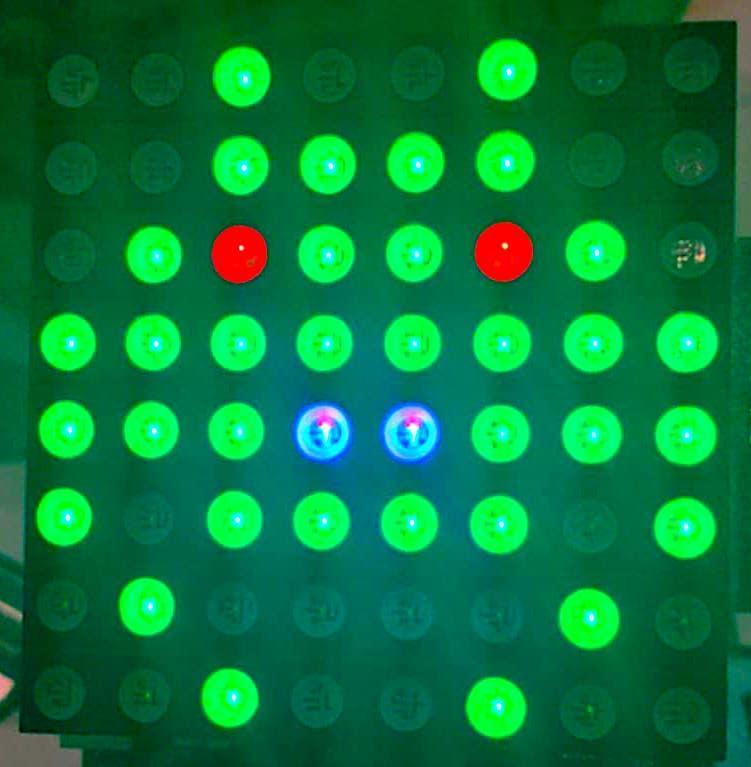
RGBScan #62 (3EH) Multiplex the 8x8 RGB Board with 3 colours, Red, Green and Blue. Need to be called in a loop. The Row data is from top to bottom.
- Input: IY = 24 Bytes of Row Data (8 Red, 8 Green, 8 Blue) LOOP: ```asm ld iy,RGBDATA ld c,62 ← This is whats displayed rst 10h with the data below jr LOOP
RGBDATA: .db 00h,00h,24h,00h,18h,00h,00h,00h ; RED Data .db 24h,3Ch,5Ah,0FFh,0FFh,0BDh,42h,24h ; GREEN Data .db 00h,00h,00h,00h,18h,00h,00h,00h ; BLUE Data
### Real Time Clock (RTC) Add-On Interface
Real Time Clock (RTC)
Add-On Interface
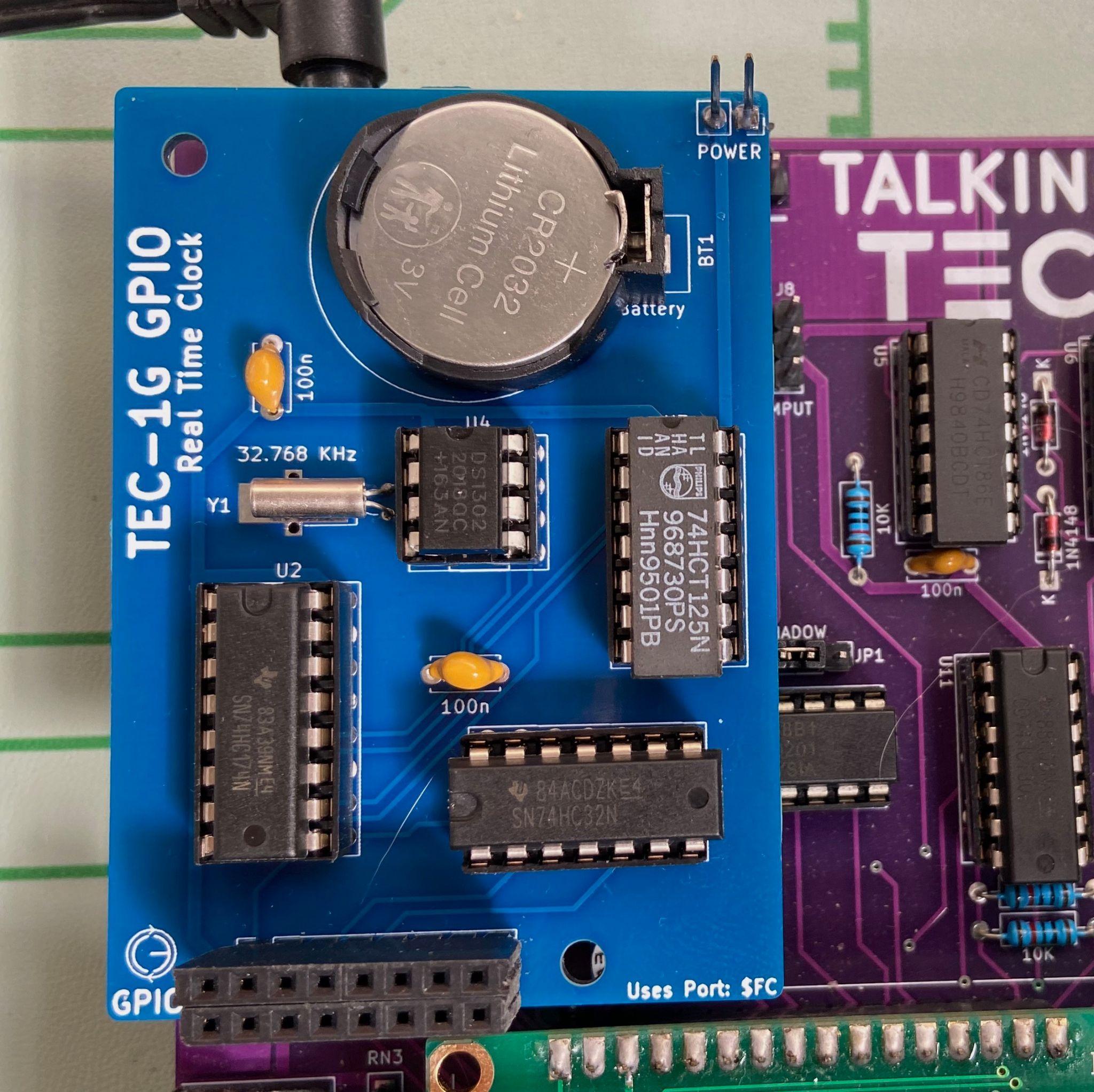
A RTC add-on board that connects to
the General Purpose IO port on the
TEC-1G can be interfaced with Mon3.
The board uses the DS1302 Real Time
Clock chip. The RTC chip is designed
to respond on port FCH.
The DS1302 supports 12 and 24 hour
clock modes, a 100 year calendar
(2000-2099) with leap year support,
and 31 bytes of general purpose nonvolatile RAM. The TEC Designers have
called the NVRAM, "Parameter RAM" or PRAM.
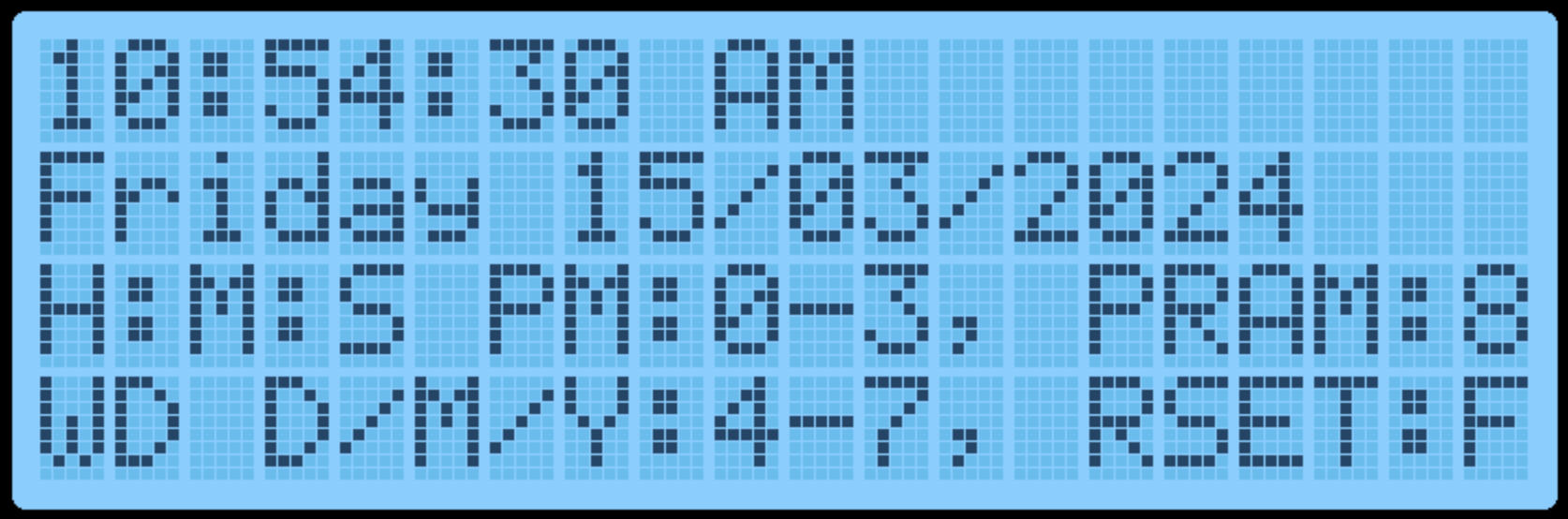
To initially set the RTC, a convenient RTC Setup routine has been provided
in the Settings item in the Main Menu. Select "Configure RTC". Press the
following keys to update the time/date: 0 = Hour, 1 = Minute, 2 = Second, 3 =
12/24h, 4 = Day of week, 5 = Day, 6 = Month, 7 = Year, 8 = View RTC PRAM, F =
Reset RTC, AD = Exit. When viewing RTC PRAM data, Plus = Move Down,
Minus = Move Up, AD = Exit back to RTC Setup.
```text
Mon3 will
automatically utilise
the internal PRAM to
retain some settings
when the TEC-1G is
powered down. 14
Free bytes are
available to be used by the user. The reserved Mon3 PRAM slots are:
 Slot   Reserved for                     Slot    Reserved for           Slot   Reserved for

 0-5    Quick Jump Addresses            12-13    Baud Rate             16-29   User Free RAM

 6-11   Start/End/Dest Addresses        14-15    Addr. Inc. / Beep       30    Mon3 Checksum
When the RTC board is first used, TEC-1G settings are saved to the PRAM during power on. Manual resetting of the PRAM can also be achieved by selecting the “Reset RTC & PRAM” option in the Settings item in the Main Menu. This will reset the time/date and Mon3 reserved values.
RTC API Calls
The RTC API uses the standard rst 10H call with the addition of the B register to specify which RTC API function is required. This way, all RTC functions only occupy a single Mon3 API call.
 General Interface

         ld c,2EH       ;RTC API call number
         ld b,[RTC Call Number]
         rst 10H

 Some Examples

            ;Get the current time
  01 2E 02  ld bc,022EH      ;getTime + RTC API
  D7        rst 10H

            ;Set the current time to 10:24:46
  01 2E 03  ld bc,032EH      ;setTime + RTC API
  21 00 30  ld hl,1024H      ;10 hours, 24 minutes
  16 46     ld d,46H         ;46 seconds
  D7        rst 10H

            ;Write a byte to the RTC NV Ram
  01 2E 0C  ld bc,0C2EH      ;writeRTCbyte + RTC API
  11 FF 02  ld de,02FFH      ;Save FF in position 02
  D7        rst 10H


 RTC Routine        #   0x     RTC Routine         #   0x     RTC Routine          #    0x

 checkDS1302        0    0     setDay               7   07    BCDToBin             14   0E

 resetDS1302        1   01     get1224Mode          8   08    binToBCD             15   0F

 getTime            2   02     set12HrMode          9   09    formatTime           16   10

 setTime            3   03     set24HrMode         10   0A    formatDate           17   11

 getDate            4   04     readRTCByte         11   0B    RTCSetup             18   12

 setDate            5   05     writeRTCByte        12   0C

 getDay             6   06     burstRTCRead        13   0D
checkDS1302 #0 (00H) Check if a DS1302 is detectable, by verifying that the DS1302’s registers return expected results.
- Input: none
- Output: Carry flag set = no RTC add-on board present
- Destroy: A
resetDS1302 #1 (01H) Resets the DS1302 to a known state - clears existing Time and Calendar. Does not clear RTC RAM. Sets DS1302 to 01:00.00 AM, 01/01/2000.
- Input: none
- Destroy: none Note: To be used only when the RTC requires a settings reset e.g. if it’s not “ticking”. Use checkDS1302 to “reset” the DS1302 to a ready state, as part of program initialization.
getTime #2 (02H) Get time from RTC. Time is formatted in either 12 or 24 hour mode, depending on selected mode.
- Input: none
- Output: H = hour, bit 5=am/pm flag (in 12hr mode). 1=PM ```text L = minute D = second
- Destroy: A ```
Note that all returned registers are BCD coded, so 10:24:36 results in HL=1024h, D=36h
setTime #3 (03H) Sets the time in the RTC chip. Time is formatted in either 12 or 24 hour mode, depending on selected mode.
- Input: H = hour, bit 5=am/pm flag (in 12hr mode). 1=PM ```text L = minute D = second
- Destroy: A,E ```
The 12/24 hour mode flag is preserved. Note that all registers are BCD coded, so 10:24:36 is formatted as HL=1024h, D=36h
getDate #4 (04H) Returns the present Calendar date, month, year.
- Input: none
- Output: H = date ```text L = month DE = year
- Destroy: A ```
Note that values returned are BCD coded.
setDate #5 (05H) Sets the Calendar to a specified date/month/year. Invalid dates may be accepted e.g. 30 February as the DS1302 does not validate dates as programmed; it simply rolls over at midnight.
- Input: H = date ```asm L = month DE = year 2000-2099, D is assumed to be 20h
- Destroy: A ```
Note that values returned are BCD coded.
getDay #6 (06H) Gets the Day of the week i.e. “Monday”, “Tuesday”, etc. 01 = Monday, 07 = Sunday.
- Input: none
- Output: D = 01-07 (Day of week) ```text HL = address of zero terminated DOW string
- Destroy: A ```
The names of the days of the week are stored in the Mon3 ROM; HL points to the correct string for that day.
setDay #7 (07H) Sets the Day of the week. 01 = Monday, 07 = Sunday.
- Input: D = 01-07 (Day of week)
- Output: Carry Flag set = invalid value supplied
- Destroy: A
get1224Mode #8 (08H) Reports if the RTC is currently in 12 or 24 hour mode.
- Input: none
- Output: A = 00H (24hr), 80H (12hr), Zero flag set
- Destroy: none
set12HrMode #9 (09H) Set RTC to 12 hour mode. That is, the hour is subsequently returned as 01-12, and an AM/PM flag.
- Input: none
- Output: Carry Flag set = already in 12 hr mode
- Destroy: A,D
set24HrMode #10 (0AH) Set RTC to 24 hour mode (also known as Military Time). That is, the hour is subsequently returned as 00-23.
- Input: none
- Output: Carry Flag set = already in 24 hr mode
- Destroy: A,D
readRTCByte #11 (0BH) Reads a byte from the RTC PRAM.
- Input: D = memory slot to return 0-30
- Output: A = value stored in memory
- Destroy: none
writeRTCByte #12 (0CH) Writes a byte to the RTC PRAM.
- Input: D = memory slot to write to 0-30 ```text E = value to store
- Destroy: A ```
burstRTCRead #13 (0DH) Reads all 31 RTC PRAM bytes and fills a user-supplied buffer with that data. The user buffer should be 31 bytes long.
- Input: HL = location to write to (31 bytes)
- Output: HL = moved to address after last byte
- Destroy: A
binToBcd #14 (0EH) Converts the value in register A from BCD encoded, to binary. i.e. “23h” becomes “23” decimal.
- Input: A = BCD Value to convert
- Output: A = Binary value of BCD
- Destroy: none
bcdToBin #15 (0FH) Converts the value in register A from binary to BCD. i.e. “52” decimal becomes “52h”.
- Input: A = Binary Value to convert
- Output: A = BCD value of Binary
- Destroy: none
formatTime #16 (10H) Takes a time and fills a user-supplied buffer with an ASCIIZ string formatted as human-readable text. The user-supplied buffer should be at least 12 bytes long.
Bits 7 and 5 of the hour is used to format the time, if it is a 12hr mode timestamp - AM or PM is appended accordingly.
- Input: H = hour (bit 7 = 12/24hr, 1=12hr mode) ```text (bit 5 = am/pm flag, 1=PM) L = minute D = second IY = address of user supplied buffer
- Output: IY = moved to address after last byte
- Destroy: A ```
formatDate #17 (11H) Takes a date and fills a user-supplied buffer with an ASCIIZ string formatted as human-readable text. The user-supplied buffer should be at least 11 bytes long. Dates are output as DD/MM/YYYY
- Input: H = Date ```text L = Month DE = Year (2000 - 2099) IY = address of user supplied buffer
- Output: IY = moved to address after last byte
- Destroy: A ```
RTCSetup #18 (12H) Standalone application that assists with configuring the RTC for initial use. The LCD displays the current RTC time and date with the instructions.
Keys: 0 = Hour, 1 = Minute, 2 = Second, 3 = 12/24h, 4 = Day of week, 5 = Day, 6 = Month, 7 = Year, 8 = View RTC PRAM, F = Reset RTC, AD = Exit.
When viewing RTC RAM data, Plus = Move Down, Minus = Move Up, AD = Exit back to RTC Setup.
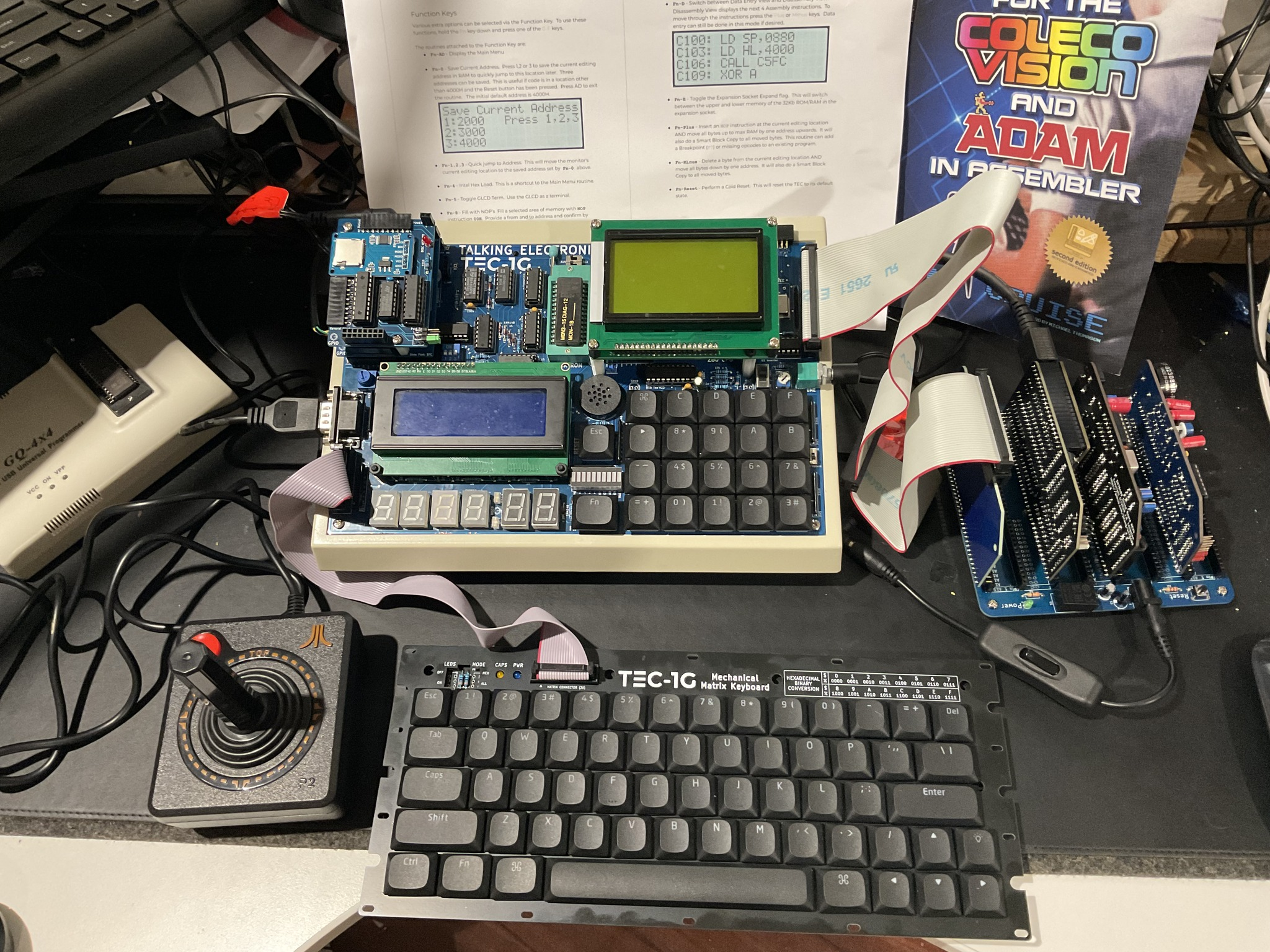
A TEC-1G with various add-on boards. Credit: Andrew McRae
Graphical LCD Add-On Interface
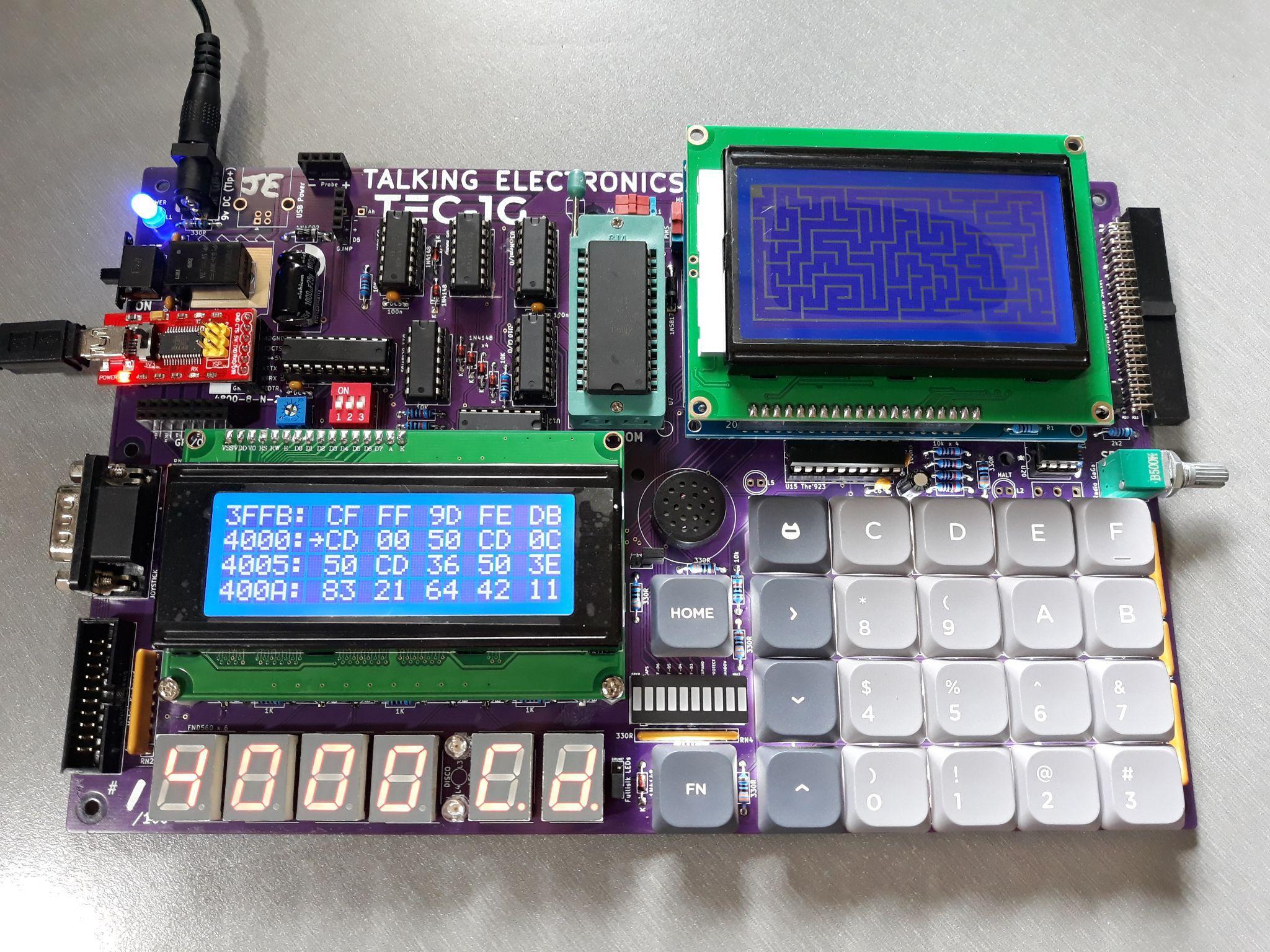
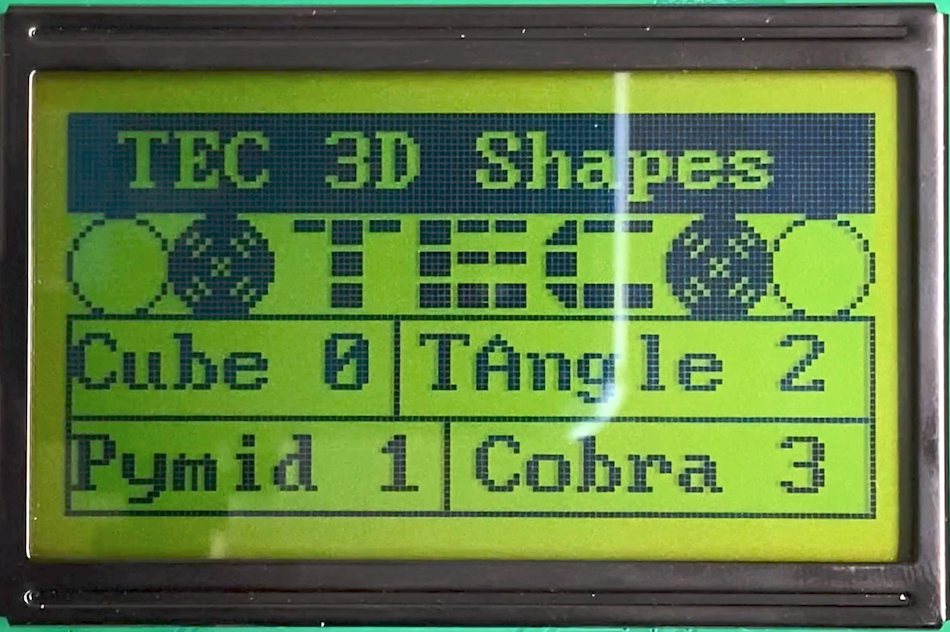
Mon3 includes a Graphical LCD (GLCD) library that will work with the TEC-DECK Graphical LCD PCB Add-On. If the Graphical LCD is installed on the TEC-1G via the TEC-DECK headers, special GLCD API calls can be used to interface with the GLCD. The library is for GLCDs with the ST7920 chip.
The GLCD library contains a variety of routines that can produce simple shapes and lines. These include text, lines, rectangles, circles and pixels.
General Conventions
The register A holds the API Call number. All other registers except the IX register can be used as parameters if needed. Executing a RST 18H or DF calls the GLCD API.
General Interface
        ld a,[API Call Number]
        rst 18H
The following code will draw a box and write text to the GLCD
           ; Initialise and set to Graphics Mode
 3E 00     ld a,0          ; Initialise GLCD
 DF        rst 18H
 3E 04     ld a,4          ; Graphics Mode
 DF        rst 18H

           ; Draw Box - Box Outline Example
 01 20 00  ld bc,0020H     ; X0, Y0
 11 3F 7F  ld de,7F3FH     ; X1, Y1
 3E 06     ld a,6 ; Draw a outline box from X0,Y0 to X1,Y1
 DF        rst 18H

           ; Plot Graphics to LCD Screen (must do)
 3E 0C     ld a,12         ; Plot To LCD
 DF        rst 18H

           ;Write Text to the Screen
 3E 05     ld a,5          ; Text Mode
 DF        rst 18H
 0E 01     ld c,01H        ; Row 1
 3E 0D     ld a,13         ; Print String
 DF        rst 18H
 54 45 43 2D 31 47 00 .db "TEC-1G",0
initLCD must be called at the start of every program. The GLCD has two modes, Text and Graphics. Both Text and Graphics can be displayed at the same time. These modes must be selected before the drawing or text routine. Also, plotToLCD must be called to display any graphics drawn to the screen. The above example adheres to these principles.
GLCD API Calls list
GLCD API Configure Calls
 Routine                 #    0x               Routine                  #    0x

 initLCD                 0     0               setBufClear             17    11

 clearGBUF               1    01               setBufNoClear           18    12

 clearGrLCD              2    02               clearPixel              19    13

 clearTxtLCD             3    03               flipPixel                20    14

 setGrMode               4    04               drawGraphic             21    15

 setTxtMode              5    05               invGraphic              22    16

 drawBox                 6    06               initTerminal            23    17

 drawLine                7    07               sendCharToLCD           24    18

 drawCircle              8    08               sendStringToLCD         25    19

 drawPixel               9    09               sendRegToLCD            26    1A

 fillBox                 10    0A               sendHLToLCD             27    1B

 fillCircle              11    0B               setCursor               28    1C

 plotToLCD              12    0C               getCursor               29    1D

 printString            13    0D               displayCursor           30    1E

 printChars             14    0E               autoLF                  31    1F

 delayUS                15    0F               underline               32    20

 delayMS                16    10               plotAlways              33    21
GLCD API Configure Calls initLCD #0 (00H) Initialise the LCD Screen. This routine is to be called before any other routine.
- Input: nothing
- Destroy: All
clearGBUF #1 (01H) Clear the Graphics Buffer. The Graphics Buffer or GBUF is the internal memory area that contains pixel data for the LCD. The drawing routines write data to the GBUF. Once all pixels are set, this buffer is then plotted to the LCD with the plotToLCD Routine. Clearing the GBUF is a good way to ensure the pixel area is empty.
- Input: nothing
- Destroy: All
clearGrLCD #2 (02H) Clear the Graphics LCD Screen. This routine clears the GDRAM or Graphics screen on the LCD.
- Input: nothing
- Destroy: All
clearTxtLCD #3 (03H) Clear the Text LCD Screen. This routine clears the DDRAM or Text screen on the LCD.
- Input: nothing
- Destroy: All
setGrMode #4 (04H) Set the LCD to Graphics Mode. This routine puts the LCD in Graphics mode (Extended Instructions). Any further instructions to the LCD will be for the graphics screen. It only needs to be called once if multiple graphics routines are used.
- Input: nothing
- Destroy: AF,DE
setTxtMode #5 (05H) Set the LCD to Text Mode. This routine puts the LCD in Text mode (Basic Instructions). Any further instructions to the LCD will be for the text screen. It only needs to be called once if multiple text routines are used.
- Input: nothing
- Destroy: AF,DE
GLCD API Graphics Calls
drawBox #6 (06H) Draws a single-line rectangle between two points X1, Y1 and X2, Y2.
- Input: B = X1-coordinate (0-127) ```asm C = Y1-coordinate (0-63) D = X2-coordinate (0-127) E = Y2-coordinate (0-63)
- Destroy: AF,HL
ld bc,0020H    ;X0, Y0
ld de,7F3FH    ;X1, Y1
ld a,6         ;drawBox
rst 18H ```
drawLine #7 (07H) Draws a straight line between X1, Y1 and X2, Y2. Uses the Bresenham Line drawing algorithm. http://members.chello.at/~easyfilter/bresenham.html
- Input: B = X1-coordinate (0-127) ```asm C = Y1-coordinate (0-63) D = X2-coordinate (0-127) E = Y2-coordinate (0-63)
- Destroy: All
ld bc,0010H    ;X0, Y0
ld de,7F30H    ;X1, Y1
ld a,7         ;drawLine
rst 18H ```
drawCircle #8 (08H) Draw a circle from midpoint to radius.
- Input: B = Mid-X-coordinate (0-127) ```asm C = Mid-Y-coordinate (0-63) E = Radius (1-63)
-
Destroy: All
ld bc,0818H ;Mid X, Mid Y ld e,08H ;Radius ld a,8 ;drawCircle rst 18H ```
drawPixel #9 (09H) Draws a single Pixel.
- Input: B = X-coordinate (0-127) ```asm C = Y-coordinate (0-63)
- Destroy: AF,HL
ld bc,4020H    ;X,Y
ld a,9         ;drawPixel
rst 18H ```
fillBox #10 (0AH) Draws a filled rectangle between X1, Y1 and X2, Y2.
- Input: B = X1-coordinate (0-127) ```asm C = Y1-coordinate (0-63) D = X2-coordinate (0-127) E = Y2-coordinate (0-63)
- Destroy: AF,HL
ld bc,0020H    ;X0, Y0
ld de,7F3FH    ;X1, Y1
ld a,10        ;fillBox
rst 18H ```
fillCircle #11 (0BH) Draws a filled circle from a midpoint to a radius. This routine iteratively calls the drawCircle routine increasing the radius until it equals the register E. There might be gaps in the filled circle, but hey it looks just like what you get on a BASIC program.
- Input: B = Mid-X-coordinate (0-127) ```asm C = Mid-Y-coordinate (0-63) E = Radius (1-63)
-
Destroy: All
ld bc,1018H ;Mid X, Mid Y ld e,08H ;Radius ld a,11 ;fillCircle rst 18H ```
GLCD API Text Calls
plotToLCD #12 (0CH) This routine draws the Graphics Buffer or GBUF to the Graphics LCD screen. It is usually called after one of the drawing routines is called. This routine must be called for any graphics to appear on the GLCD. After plotting the GBUF is cleared. Use setBufNoClear to retain the GBUF.
- Input: nothing
- Destroy: All
GLCD API Text Calls printString #13 (0DH) Prints ASCII text on a given row. There are 4 text rows on the LCD screen. The text is to be defined directly after the RST 18H routine and is to be terminated with a zero.
- Input: C = row number (0-3) ```asm Text = “String” on the next line, terminate with 0
-
Destroy: All
ld c,02H ;Row 2 ld a,13 ;printString rst 18H .db 02H, “ This Text “, 1BH ,00H ```
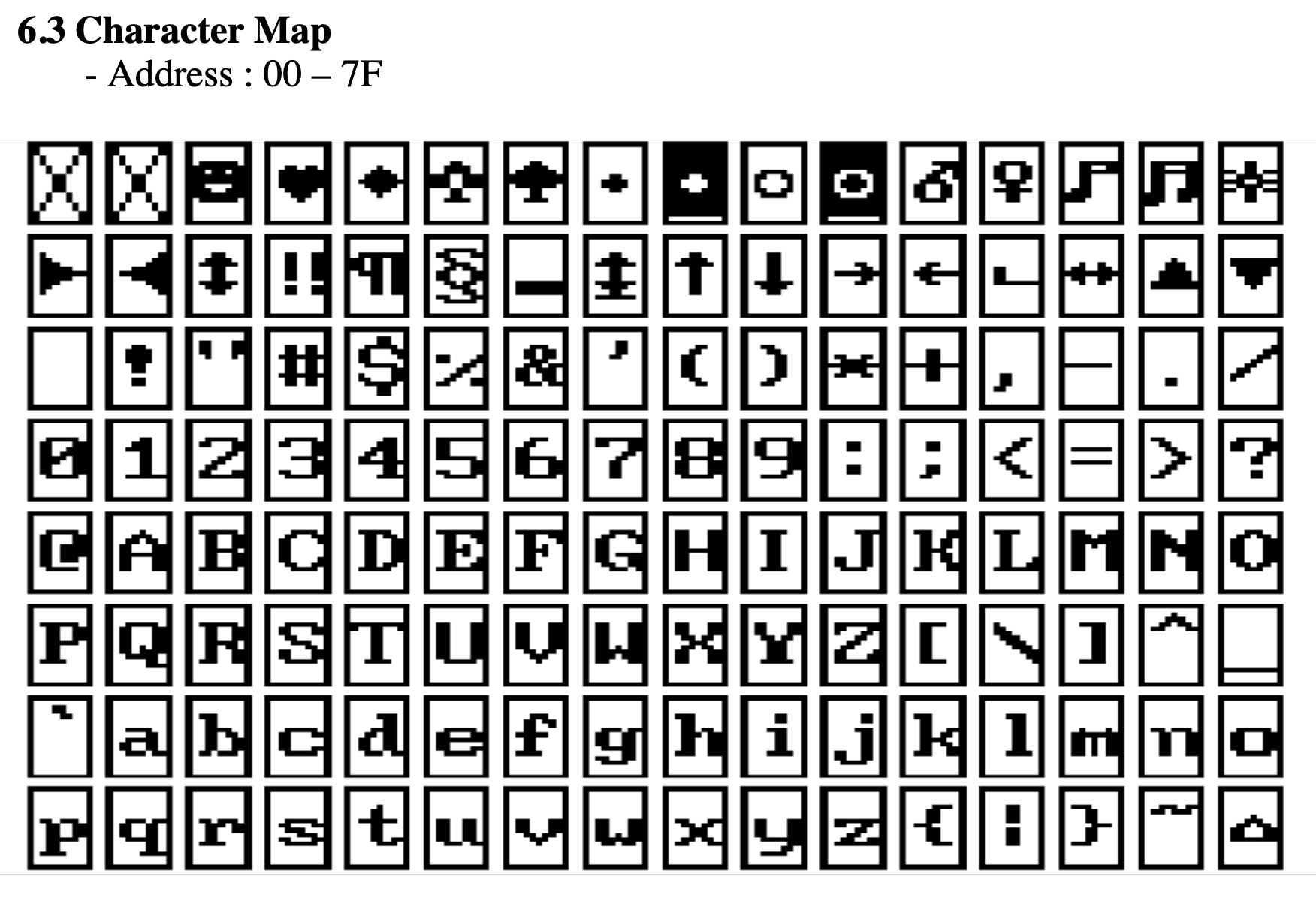
There are 128 characters that are available from 00H-7FH. Conveniently, Alphanumeric characters align with the ASCII table.
GLCD API Utility Calls
printChars #14 (0EH) Print Characters on the screen in a given row and column. This routine is similar to the one above but character row and column placement can be made. Characters to be printed are to be terminated with a zero.
Even though there are 16 columns, only every second column can be written to and two characters are to be printed. IE: if one character is to be printed in column 2, then set B=0 and print “ x”, putting a space before the character.
- Input: B = column (0-7) ```asm C = row (0-3) HL = start address of text data
- Destroy: All. (HL will be at the end of the text data)
ld hl,TEXT_DATA
ld bc,0102H     ;Column 1, Row 2
ld a,14         ;printChars
rst 18H
...
TEXT_DATA:
.db "Hello!",0 ```
GLCD API Utility Calls delayUS #15 (0FH) Delay loop for LCD to complete its instruction. Every time a command is sent to the LDC, it requires a small amount of time to complete that operation. IE: setting extended instruction mode. The time needed for most operations is defined in the LDC specification. It is usually around 72us. This routine is used internally, but can also be used directly. The delay time depends on how fast the CPU is running.
- Input: nothing
- Destroy: AF,DE
       ld a,02H    ;Home instruction
       out (07),a  ;send instruction to GLCD
     ld a,15     ;delayUS
     rst 18H
delayMS #16 (10H) This is the same as the above routine, but the delay can be software controlled.
- Input: DE = delay value
- Destroy: AF,DE
       ld a,01H    ;Clear instruction
       out (07),a  ;send instruction to GLCD
       ld de,0050H ;longer delay
     ld a,16     ;delayMS
     rst 18H
setBufClear #17 (11H) On every plotToLCD call, clear the graphics buffer GBUF. Calling this routine will clear the graphics buffer on every draw to the LCD. This is useful if doing animation that requires a new drawing to be displayed on every plot or frame.
- Input: none
- Destroy: AF
setBufNoClear #18 (12H) Do not clear the graphics buffer on every plotToLCD. Calling this routine will not clear the graphics buffer on every draw to LCD. This is useful for adding graphics data to an existing drawing.
- Input: none
- Destroy: AF
clearPixel #19 (13H) Removes or clears a single Pixel from the LCD.
- Input: B = X-coordinate (0-127) ```asm C = Y-coordinate (0-63)
- Destroy: AF,HL
ld bc,4020H     ;X,Y
ld a,19         ;clearPixel
rst 18H ```
GLCD API Drawing Calls
flipPixel #20 (14H) Inverts a single Pixel. If the Pixel is on, it will turn off. If the Pixel is off, it will turn on.
- Input: B = X-coordinate (0-127) ```asm C = Y-coordinate (0-63)
- Destroy: AF,HL
ld bc,4020H     ;X,Y
ld a,20         ;flipPixel
rst 18H ```
GLCD API Drawing Calls drawGraphic #21 (15H) Draw an ASCII character or Sprite to the GLCD at the current cursor. ASCII characters are 6x6 or 5x5 Pixels and most have a gap to the right and bottom for spacing. plotToLCD is still required to be called after all graphics have been drawn.
Graphics data is in the format of up to 16 bytes across and 64 bytes down, where a BIT set will indicate a pixel to be drawn. If graphics are less than 8 bits wide, then bits are read from the least significant bit.
- Input: D = ASCII number or ```asm D = 0 then: HL = Address of graphic data B = width of graphic in pixels (1-128) C = height of graphic in pixels (1-64)
- Destroy: All
ld a,00H        ;Custom graphic
ld hl,picture   ;Data table address
ld b,16         ;B=16 pixels wide
ld c,8          ;C=8 pixels down
ld a,21         ;drawGraphic
rst 18H
ld a,12         ;plotToLCD
rst 18H ```